All Controls Explained
The main script component OrbitalCameraSystem is divided into multiple foldable sections.
Note
Input bindings (mouse buttons, keys, and touch gestures) live on separate input components, not on the main script. See Legacy Input Components or New Input System Components, depending on which backend you're using.
Basic Rig
Contains the references to the 3 objects in the rig structure. You would normally never need to modify this.

Camera Position
Controls the initial rotation, tilt, and zoom distance for the camera.
Beware that the initial values can only be within the limits set in the Settings section.

Speeds
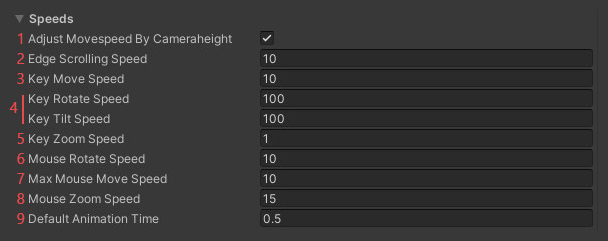
Adjust Movespeed by Camera Heightwill automatically speed up the keyboard and button controls for movement, the higher the camera is above the ground. The drag movement with mouse or touch is not affected.Edge Scrolling Speed.
Key / UI Button Movement Speed: meters per second (
adjust movespeed by camera heightwill affect the actual speed).Key / UI Button Rotate and Tilt Speed: degrees per second.
Key / UI Button Zoom Speed: meters per second (when
zoom methodis linear).Mouse Rotate Speed: multiplier for pointer-drag rotation/tilt (mouse middle-button or two-finger touch).
Max Mouse Move Speed: maximum movement speed while dragging the ground. To prevent insane movement speeds when dragging near the horizon.
Mouse Zoom Speed: multiplier for pointer-driven zoom (mouse wheel or touch pinch).
Default Animation Time: default duration when using the Public API animated methods.
Pointer Rotate Smooth Time / Pointer Move Smooth Time: smoothing applied to pointer drag input. Higher values give a softer feel;
0disables smoothing all together.Touch Rotate Deadzone / Touch Rotate Smooth Time: the deadzone is how far the two fingers have to move before two-finger rotation starts, so a pinch doesn't leak a little rotation. The smooth time softens the turn on its own, separate from the pointer smooth time, which helps on platforms where touch positions arrive in steps (fx. WebGL).
Pinch Zoom Deadzone / Pinch Zoom Smooth Time: the deadzone is how much the pinch has to change before zoom starts, so a rotate doesn't leak a little zoom. The smooth time softens the pinch input before it zooms.
Settings
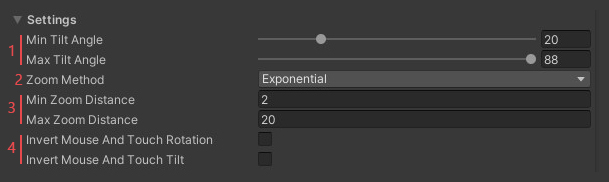
The minimum and maximum tilt angle. Note that the max angle is clamped at 88 degrees. This is to avoid gimbal lock.
Zoom Method:
- Linear - the camera moves a fixed amount with each scroll/pinch
- Exponential - the camera moves a percentage of the distance to the target with each scroll/pinch. This will speed up the movement the further you get from the ground. Ideal for very large zoom ranges.
Linear Zoom Scaling Factor (shown only when Zoom Method is
Linear): scales the distance moved per scroll/pinch unit. Use this to adjust the linear zoom feel separately from the other zoom-speed multipliers.The minimum and maximum zoom distances. Note: the minimum is clamped at 0.001.
Special Features
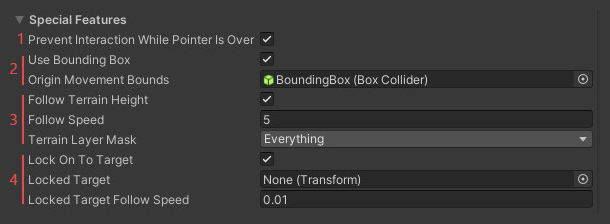
Use the Bounding Box to set a rectangular perimeter from which the camera rig cannot escape.
Follow Terrain Height will keep the camera level with the terrain. Set the
Terrain Layer Maskto pick only the geometry you want to affect the camera rig position (fx. the water and the ground, but not the trees or the buildings). This will also reduce the performance costs of the raycast. AdjustFollow Speedto control how quickly the camera rig moves up/down towards the terrain surface. Note: the height measurement raycasts every frame while enabled (64 rays). No problem on desktop; on mobile or WebGL you would want to limit the Terrain Layer Mask to simple colliders, or turn the feature off if you're chasing frames.Follow Target will make the camera origin follow a
Transformaround. While following, theFollow Terrain Heightfeature is disabled, and the player cannot move the camera manually.Follow Speedcontrols how quickly the camera moves towards the target. Note: this feature can also be set/unset via the Public API.Stepped Rotation World Snap. When enabled, the step rotation input snaps the camera to the next world-aligned grid angle in the step direction, rather than rotating relative to its current angle. The
World Offsetshifts the snap grid (fx. an offset of 45° on Rotate makes the grid 45°/135°/225°/315° instead of 0°/90°/180°/270°). Tilt snap is clamped to theSettings → Min / Max Tilt Anglerange; out-of-range targets are skipped.