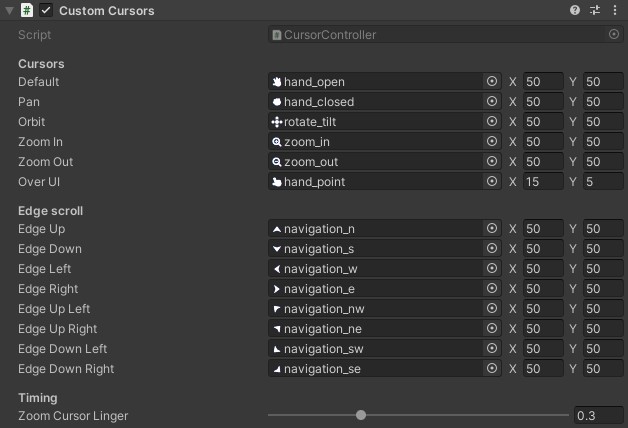
Custom Cursors
Swaps the mouse cursor to match what the camera is doing: a grab hand while you pan, a rotate cursor while you orbit, a magnifier while you zoom, and directional arrows while edge-scrolling. Backend-independent: it reads the camera's interaction state, so it works with either the Legacy Input Manager or the New Input System.
This is a desktop feature. Touch devices have no hardware cursor, so the component does nothing there.
Setting it up
Every OrbitalCam prefab already has a Custom Cursors component set up, with the included cursors assigned. To add it to your own rig, or to swap in your own cursors:
- Select the rig (the object with the
Orbital Camera Systemcomponent). Add Component → Goehler Studios → OrbitalCam → Cursors → Custom Cursors.- Assign a texture to each cursor slot you want. Empty slots fall back to the
Defaultcursor, so you only need to fill the ones you care about.
The component finds the camera on its own, so there's nothing to wire up.
The cursor slots
Each slot is one cursor state. When several are active at once the component picks by priority, pan > orbit > zoom > edge scroll > over UI > default, so an active drag always wins over a hover.
- Default - idle over the scene.
- Over UI - the pointer is over a UI element, where camera input is blocked.
- Pan - dragging to pan.
- Orbit - dragging to rotate and tilt.
- Zoom In / Zoom Out - zooming.
- Edge scroll - the pointer is in an edge-scroll margin. Eight slots, one per direction, including the diagonals.
Under Timing, Zoom Cursor Linger keeps the zoom cursor up for a fraction of a second after the zoom settles, so it doesn't flicker off between scroll notches.
The cursor art
The included cursors are from Kenney's Cursor Pack (CC0), plus a custom rotate/tilt cursor. If you supply your own:
- Import each texture as Texture Type
Cursor. - Keep them square and 32x32 or smaller. Larger or non-square textures fall back to a slower software cursor on some platforms, and the component warns you in the Inspector if one does.
Hotspot
Each slot has an X / Y hotspot: the active point of the cursor, as a percentage of its size. 50 / 50 is the center (fx. for a grab hand), 0 / 0 is the top-left (fx. for an arrow tip). It's a percentage rather than a pixel count so it stays correct if you swap the texture for a different size. New slots default to center.
For scripting
The cursor swapping is driven by the camera's interaction state: whether a pan drag, orbit drag, edge scroll, or zoom is happening. You can read that same state, and subscribe to drag start and end events, from your own scripts. See Using the API.